
How to Connect AirPods: A Complete Step-by-Step Guide for All Devices
-
Dhivyanshu
- . November 25, 2025
- . Update: November 26, 2025 2:44 pm
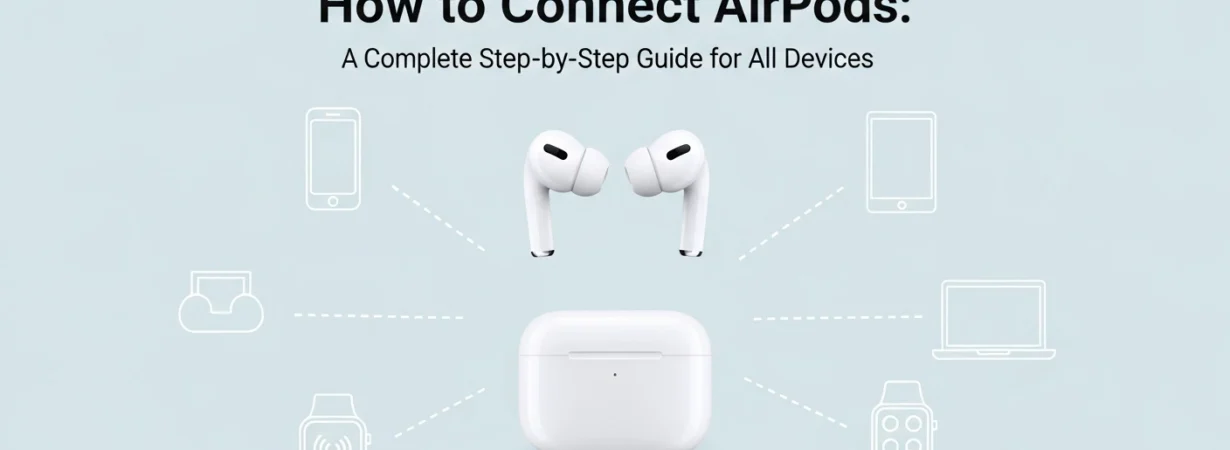
To know how to use AirPods, one needs to be familiar with how to connect airpods to various devices made by Apple. Be it you are matching them with an iPhone, iPad, Mac, Android phone, or even a windows laptop, it only takes a short time to do so when done properly. Automatic pairing of Apple products means that connecting the Apple products is easy to those who use Apple products, whereas manual pairing makes the Apple products compatible with other devices not made by Apple. This is how you can easily troubleshoot or reconnect your AirPods at any time by using this guide as a trouble-shooting guide. There is no need to go far, as you will find everything to connect your AirPods within a second, starting with switching on Bluetooth and ending with the setup button on the charging case.
How AirPods Connect: The Basics
AirPods are Bluetooth devices that form their wireless connections using the H1 or W1 chip developed by Apple that is fast and stable. Combined with an Apple device, they link easily with your iCloud account, so you can easily move between the devices without having to reconfigure it. In the case of the non-apple devices, AirPods appear as regular Bluetooth earbuds manually paired.
How to Connect AirPods to iPhone or iPad (Automatic Method)
Apple provides an instant setup animation that is the simplest method to the connection of AirPods with an iPhone/iPad. Follow these steps:
Go to Following on your iPhone or iPad and make sure that Bluetooth is on.
- Put your AirPods into the charging case, and open the lid.
- Put the case close to your iPad or iPhone.
- An animation setup display will be presented on the screen.
- Tap Connect in order to pair your AirPods.
- Take any other on-screen directions, including Hey Siri.
When you have them connected, your AirPods connect automatically to other Apple devices connected to your iCloud account such as your MacBook, Apple Watch, or Apple TV.
How to Connect AirPods to a Mac
If your AirPods were already paired with an iPhone using the same Apple ID, they should appear automatically in your Mac’s Bluetooth menu. If not, connect them manually:
- Click the Apple menu > System Settings > Bluetooth.
- Open your AirPods case and keep them nearby.
- Select AirPods from the list and click Connect.
Your Mac may ask you to enable additional settings such as microphone permissions.
How to Manually Connect AirPods to Any Device
In case you had previously paired your AirPods with an iPhone with the same Apple ID, they will just show up in the Bluetooth menu in Mac. If not, connect them manually:
Follow these steps:
- Click the apple menu system settings and then Bluetooth.
- Keep your AirPods close by leaving their case open.
- On the list, choose AirPods, and press the Connect button.
- Your Mac might require you to activate several options like giving microphone access.
- AirPods Manual Connection to any device.
- Older models of AirPods have to be connected by hand, or when connecting to Android or Windows, or with non-Apple devices.
Troubleshooting Connection Issues
If your AirPods won’t connect:
- Ensure that they are charged and the case contains battery.
- Switch Bluetooth off and switch Bluetooth on.
- Restart your AirPods by pressing the setup button until the light shifts amber, white.
- Make sure your software is updated in your device.
- These measures are normally effective in correcting most of the pairing problems within a short time.