

How to Connect iPhone to Smart TV: Easy Methods for Seamless Screen Sharing
-
Dhivyanshu
- . December 24, 2025
- . Update: December 24, 2025 5:11 pm
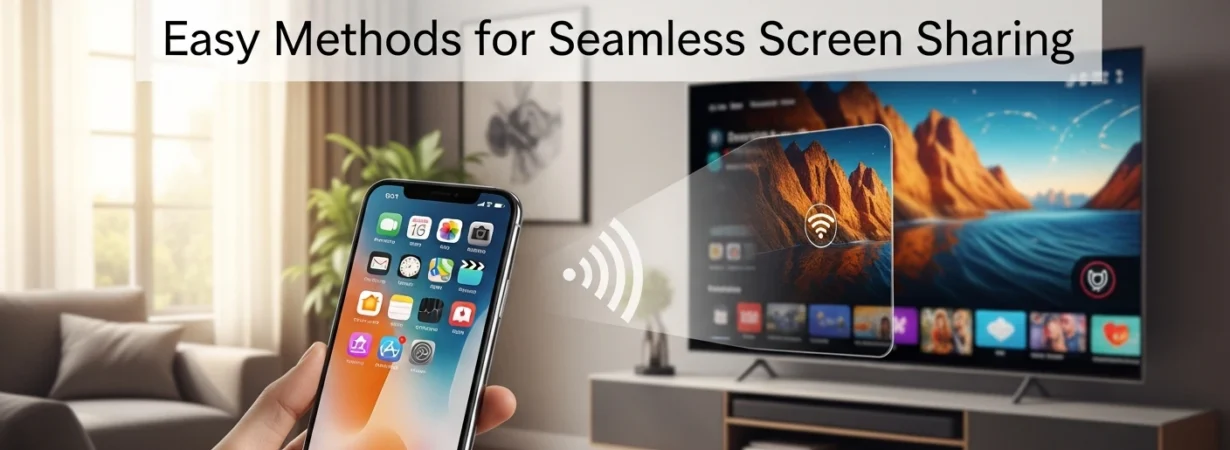
The ability to connect your iPhone and Smart TV is becoming more and more significant as users wish to watch photos, videos, applications, and presentations on a bigger screen. You can stream movies, you can share pictures of your vacation with your family, you can even make a quick presentation, but you can learn how to connect iPhone to Smart TV and make your experience more immersive and convenient. Apple comes with inbuilt wireless, and Smart TVs also have wired and third-party solutions. This is a guide on the best, dependable and easy to use strategies in order to be compatible with the popular Smart TV brands and it advises on the best alternative to adopt depending on the needs.
Method 1: Connect iPhone to Smart TV Using AirPlay
AirPlay is the official wireless technology of Apple, and the simplest method of replicating your iPhone screen.
Steps:
- Make sure that your Smart TV and iPhone are on the same Wi-Fi network.
- Go to open Control Center of your iPhone.
- Tap Screen Mirroring and choose your SmartTV.
- Input the AirPlay code on the TV, when necessary.
This is most successful with Apple TV and Smart TVs that use airplay. It is among the most used methods of learning how to connect iPhone to Smart TV without use of cables.
Method 2: Use a Lightning or USB-C to HDMI Cable
A wired connection is a sure way to go in case your TV does not support AirPlay.
Steps:
- Insert Lightning or USB-C to HDMI adapter into your iPhone.
- Plug an HDMI cable to the adapter into your Smart TV.
- USB Choose the right HDMI input on your television.
This is a more decent choice as it offers a steady stream of video and audio and can be used with streaming and gaming without any delays.
Method 3: Third-Party Apps for Screen Mirroring
Most Smart TVs have applications that allow iPad screens to be mirrored without AirPlay.
Popular options include:
- Screen Mirroring apps
- TV manufacturer apps
- Casting applications in the App Store.
Once the app is installed on both the devices, take the on-screen instructions. Such applications prove useful in case of knowing how to connect iPhone to Smart TV on other non-iOS ecosystems.
Method 4: Connect via Smart TV Built-In Apps
There are Smart TVs that can be directly casted by the apps that are supported such as YouTube or Netflix.
Steps:
- Load a sponsored application on your iPhone.
- Tap the Cast or AirPlay icon.
- Select your Smart TV.
This is an easy method of consuming content without complete iPhone screen reflection particularly streaming platforms.
Common Troubleshooting Tips
- Always make sure that the two devices are updated with the new software.
- Reboot your Smart TV and iPhone in case of a break.
- Wireless methods need to be ensured to be stable.
These are measures that enhance success in the application of the iPhone screen mirroring and other connection possibilities.