
How to Hide an App on iPhone: A Complete Step-by-Step Guide
-
Dhivyanshu
- . November 24, 2025
- . Update: November 25, 2025 3:25 pm
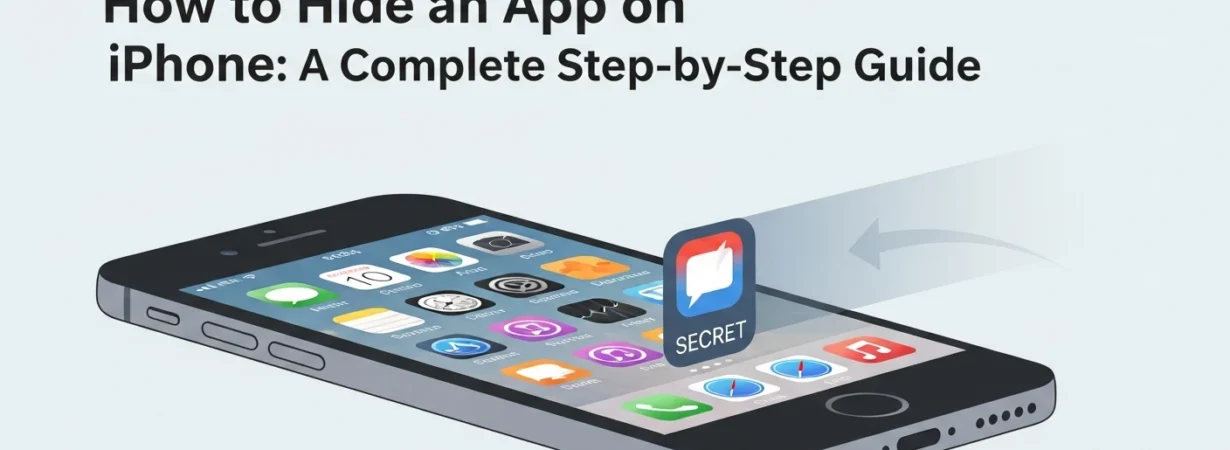
Here, the best method to on how to hide an app on iPhone is to learn how to keep privacy safe and avoid revealing sensitive apps in front of a peeping tom. You can either lock up financial apps, message personal apps, or any other personal tool, but the iOS now has an in-built way of hiding apps with Face ID or Touch ID or passcode. Using just a few steps, you can delete the apps in the Home Screen and save them in a safe place, in the Hidden folder in the App Library. This is precisely a guide on how to hide app on iPhone and locate applications with easy to follow guidelines.

What Does Hiding an App on iPhone Do?
By simply tucking an application on an iPhone, you can no longer see it on your Home Screen and it will only appear in a safe Hidden folder. This service will make certain that no one is opening the hidden application of your device. It provides an additional security and is ideal in preserving privacy without erasing or uninstalling the application.
How to Hide an App on an iPhone (Step-by-Step Guide)
There are a few steps that can help you hide any application in your iPhone in a safe manner:
1. Long-Press the App Icon
The first thing to do is to access your Home Screen and find the app you want to hide. Tap and hold the app till it displays a menu.
2. Select “Hide and Require Face ID”
Among the available ones, tap Hide and Require Face ID. The choice can have Touch ID or Passcode rather than Face ID depending on your device.
3. Authenticate Your Choice
Your iphone will require authorization. Authenticate the hiding action with your Face ID, Touch ID or pass code.
4. The App Is Now Hidden
When you are authenticated, the app disappears off your Home Screen. You will not see it anymore unless you visit it in the Hidden folder of the App Library. It is a secure place where one must authenticate every time you access it.
How to Find and Access Hidden Apps on iPhone
In case you have to access the hidden app, please do as follows:
1. Go to the App Library
Tap your way past all your Home Screen pages until you reach the App Library.
2. Scroll to the Bottom
The Hidden folder is at the bottom of the list of the App Library.The Hidden folder is at the bottom of the list of the App Library.The Hidden folder is at the bottom of the list of the App Library.
3. Authenticate to Open the Folder
Tap the Hidden folder. Your iPhone will require authentication, touch your face, finger, or type your code.
4. Access Your Hidden Apps
Any app that is inside the Hidden folder can be opened immediately as soon as it is unlocked.
How to Unhide Apps on iPhone
To get an app back to the Home Screen, you only need to do the following:
1. Open the Hidden Folder
On your App Library, scroll down, and then tap the Hidden folder. Authenticate to open it.
2. Long-Press the App You Want to Unhide
Tap and hold the icon of the hidden application until a menu is shown.
3. Tap “Add to Home Screen”
Once you have tapped Add to Home Screen, make sure the move is confirmed by tapping Unhide app.
4. App Returns to Home Screen
You can now once again now see and access the app right on your Home Screen.