
How to Unblock Pop-Ups on iPhone: A Complete Step-by-Step Guide
-
Dhivyanshu
- . December 2, 2025
- . Update: December 2, 2025 12:56 am
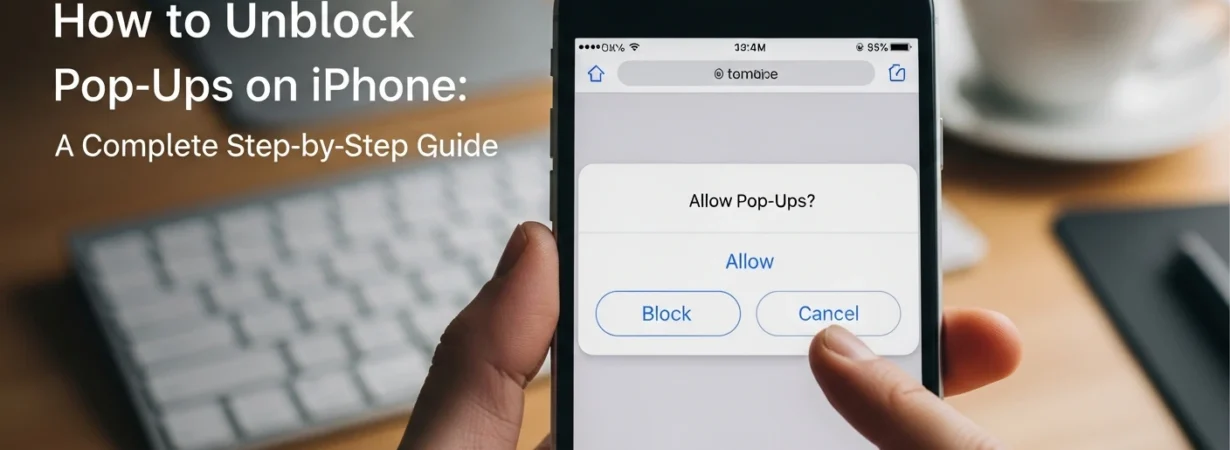
It is necessary to learn how to unblock pop ups on iPhone when significant sites, billing sites, account management portals, or validation forms cannot be loaded due to the block of pop-ups. Although pop-ups are traditionally viewed as advertisements, there are numerous honest sites that use it to ensure easy navigation and safe user interface. Regardless of whether you are using Safari or Chrome on your gadget, it is important to know which steps to follow when unblocking pop ups on iPhone so that you do not miss important information. This guide contains easy step-by-step instructions, tips, and statistics as to why pop-ups are blocked. At the end, you will realize how to block the pop ups in iPhone easily and in a safe way.
Why Pop-Ups Get Blocked on iPhones
Apple has built privacy and security as part of its concern to the users hence, Safari is set to block most types of intrusive pop-ups and trackers. Although this is advantageous to the users, it may occasionally tamper with the normal operations of the websites. As an example, payment gateways, PDF downloads and authorization windows are frequently displayed in pop-ups. When they are blocked, then you may consider the site to be broken. Being aware of how to unblock pop ups on iPhone will make you prevent such inconveniences and will make it easier to navigate.
How to Unblock Pop-Ups on iPhone Using Safari
The iPhone uses Safari as the default browser, and the majority of users use it on a daily basis. The following is the way to unlock pop ups on iPhone using Safari settings:
- Go to the Settings application on the iPhone.
- Scroll down and tap Safari.
- Find the Block Pop-ups option.
- Switch off (the switch will become gray instead of green).
- Safari is to be closed and reopened to make the new settings take effect.
It is the easiest means of controlling your pop-ups. In case a site continues to not have pop-ups, refresh the page or delete your browsing history. Most users, even those on YouTube tutorials, say that the browser restart can usually assist in quicker application of the change.
How to Unblock Pop-Ups on iPhone Using Chrome
When you are on the Chrome app, rather than the Safari, then the process is a little different. To know how to unblock pop ups on iPhone in Google Chrome, follow the following steps:
- Open the Chrome app.
- Click the three dots (More) tool in the bottom-right hand corner.
- Select Settings.
- Tap Content Settings, scroll down.
- Toggle Block Pop-ups off.
After disabling such a setting, any number of sites will be able to have pop-ups on Chrome. In the case you want more control, Chrome has other content settings where you can block all pop-ups or leave only specific websites.
When You Should Allow Pop-Ups
Pop-ups may be necessary though they are reportedly bad. You might wish to unblock pop ups on iphone when:
- A web page employs the login or verification pop-ups.
- You wish to open some downloadable documents like PDF.
- One of the payment pages is a pop-up page.
- You believe in the site and must have all the functionalities of that site.
It is necessary to be cautious and never permit pop-ups on reliable sites.