How to Take Screenshot in iPhone: Easy Methods for All Models (2025 Guide)
-
 Omar Haddad
- . December 31, 2025
- . Update: December 31, 2025 6:59 pm

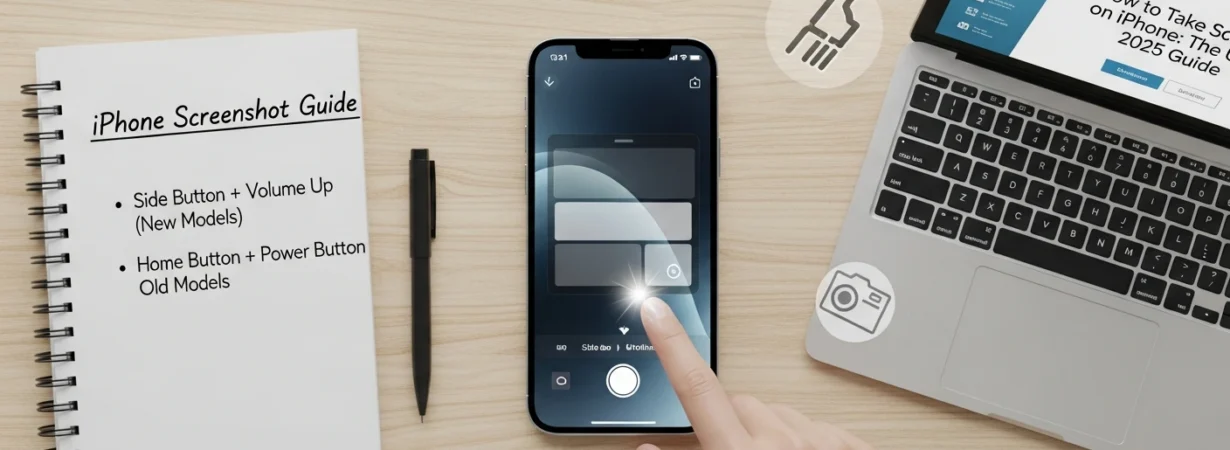
To know how to screen shot in iPhone is a simple but fundamental skill of all Apple users. Screenshots can be used to save valuable data, share discussions, take records of payment messages, or preserve app and web memories. There are various ways of taking a screenshot with an iPhone, on which Apple provides different options based on the model of your phone, including button combinations, accessibility shortcuts, and voice commands. It is fast and easy to take a screenshot whether you have Face ID, Touch ID or want hands-free controls such as Siri. This manual provides a step-by-step guide to taking a screenshot in iPhone, and editing and saving preferences.
How to Take Screenshot in iPhone Using Buttons
Physical buttons are the most widespread means through which one is taught how to take screenshot in iPhone. There are two button options at Apple, depending on the type of device.
iPhone with Face ID (No Home Button)
In the case of newer phones such as iPhone X and higher:
Tap the Side button and the Volume Up button simultaneously, and release them within a short period.
A preview of the thumbnail would appear on the bottom left.
iPhone with Home Button (Touch ID)
When it comes to older models, such as iPhone 8 or SE, it does not have this feature:
It is necessary to press the Side button (or Top button) and the Home button at the same time and release.
This is the quickest way to take screenshots in the majority of the devices.
What Happens After You Take a Screenshot
After learning to take screenshot in iphone, it is also important to know what follows after doing it.
There is a small thumbnail that is located at the bottom-left corner of the screen. To access editing features, you can tap its top and are able to swipe it left to dismiss. Any screen shot is automatically stored in the Photos application under the Screenshots album.
Edit, Markup, and Share Screenshots
Apple enables one to edit immediately when a screenshot is taken.
You can edit the picture, make some drawings with Markup tools, underline the text, or leave notes. To share, I would tap the Share option to share it using WhatsApp, email, or AirDrop. Click Tap save, copy or delete the screenshot.
This renders the means of taking screenshot in iphone all more helpful in work and routine.
Other Ways to Take Screenshot in iPhone
Use Back Tap Feature
There is also a shortcut by Apple to enable a user to have a buttonless model.
Open the settings and accessibility and touch and back tap, and change to the double tap or triple tap to Screenshot.
Use Siri Voice Command
You can also say:
“Hey Siri, take a screenshot.”
This is a convenient hands-free approach where the buttons are inaccessible.